Wi-Fi optimization
Slow business Wi-Fi? Start with these seven checks.
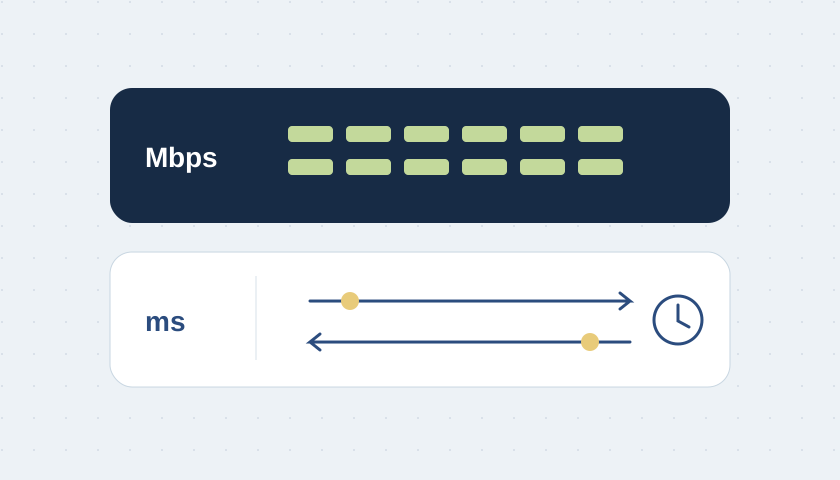
A practical troubleshooting order for Calgary shops, restaurants and offices: compare wired and wireless performance before replacing equipment.

The quick answer
Find out whether the bottleneck is the Internet connection, the Wi-Fi network or one device. Measure first, change one thing at a time, and test the original problem again.
A payment terminal pauses, the kitchen printer disappears, and a video call breaks up. Buying a faster Internet plan may look like the obvious fix. Start by identifying which connection is actually failing. This checklist helps you gather useful evidence before spending money or changing a working part of your network.
1. Describe the disruption, not just the speed
Write down the affected device, application, place and time. Does every laptop slow down, or only one terminal? Does the issue follow a person around the building? Record a specific symptom such as ‘the printer disconnects at lunchtime’. That is a much better test target than ‘the Wi-Fi feels bad’.
2. Compare wired and wireless
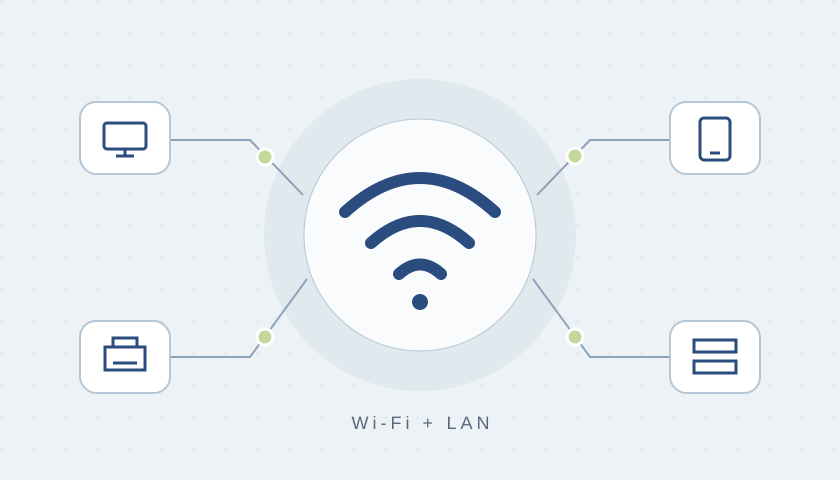
Use the same capable laptop and test destination. Connect by Ethernet to the existing LAN, then compare Wi-Fi near the access point and at the problem location. Repeat during a quiet period and a representative busy period. A stable wired result alongside poor Wi-Fi points toward the wireless path; poor results on both require a wider investigation.
Do not connect a business laptop directly to an unprotected Internet handoff. Keep the normal firewall in place. Also note the laptop’s Ethernet adapter speed: a slow adapter can limit the test itself.
3. Check where the access point is installed
Look for an access point hidden in a metal cabinet, behind stock, or far from the working area. Check its manufacturer’s mounting guidance and the path to the devices. A short walk with repeatable measurements can tell you more than the signal icon. Start with placement and coverage before deciding that every device needs replacing.
4. Review bands, channels and airtime
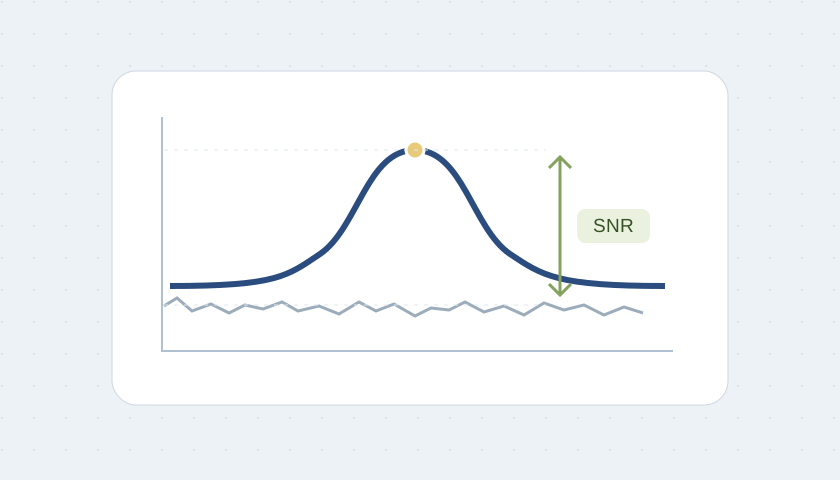
Check which band the affected device actually uses and whether its capabilities match the network. In crowded 2.4 GHz environments, 20 MHz channels are a useful starting point. Wider is not automatically better. Automatic channel management is often preferable to an unmeasured manual change; verify its results in your own space.
Source: Apple · Recommended Wi-Fi router settings · Cisco Meraki · Channel Planning Best Practices
5. Inspect the links behind the Wi-Fi
An access point still needs a healthy connection upstream. Check its cable, switch port, negotiated link speed and error counters. Where practical, compare a wired backhaul with the existing mesh path. Adding another wireless repeater without checking that path can move the problem rather than solve it. Use fixed, supported wired connections for critical equipment where suitable.
6. Look at what happens when the business is busy
Compare the trouble times with backups, uploads, camera traffic and guest use. Guest separation improves control over access, but does not create extra Internet capacity. Review actual demand before applying traffic policies. A policy that helps voice traffic can also disrupt another application if configured without understanding it.
7. Make one controlled change and retest
Save the configuration, choose a maintenance window and have a rollback plan. Changes to radio settings can briefly disconnect devices. Repeat the same device, location and application test after each change; document both successful and unsuccessful results.
Source: Cisco Meraki · Channel and Transmit Power Adjustment
What this looks like in a restaurant
Illustrative example: the office PC remains stable on Ethernet, but a mobile terminal fails beside the kitchen during lunch. The next step is to check that terminal’s wireless connection and its surroundings, not assume the fibre plan is too slow. If several wired devices fail too, broaden the check to switching, gateway, DNS and the provider path.
For a useful service request, send the symptoms, affected devices, approximate times and a simple equipment list. Leave passwords and customer records out of the form. DR WiFi can assess what you already have and explain any proposed replacement before you commit.